

Chat
Words travel far in this world - to the player beside you, to your party, to the guild, or to the whole server at once. Enter opens the chat line, Enter again sends it, Esc puts it away unsent.
Channels
The buttons on the chat line switch between Normal, Party and Guild. The same is done by the first character of the line:
| Start of the line | Who reads it |
|---|---|
| nothing | Players nearby |
| ~ | Your party |
| @ | Your guild |
| @@ | Your alliance |
| /post | The whole server - 100,000 Zen, from level 150 |
Whisper
The small field to the left of the text takes a name: write the name there, the message on the right, and it goes to that player alone. Tab jumps between the two fields, F3 shows or hides the name field. A right click on a name in the chat log puts it there for you.
What the log shows
F2 opens the chat settings: tick what you want to see - normal chat, whispers, party, guild, alliance, posts, shown items, server notices, and the readouts of experience, master experience, Zen and items obtained.
With the chat line open, F5 gives the log a frame with a scroll bar and F4 changes its height. The arrows Up and Down bring back the lines you sent before.
Macros
Type "/1 your text" to save a line under the digit 1 - ten lines fit, from /1 to /0. Alt with the digit sends the saved line.
Showing an item
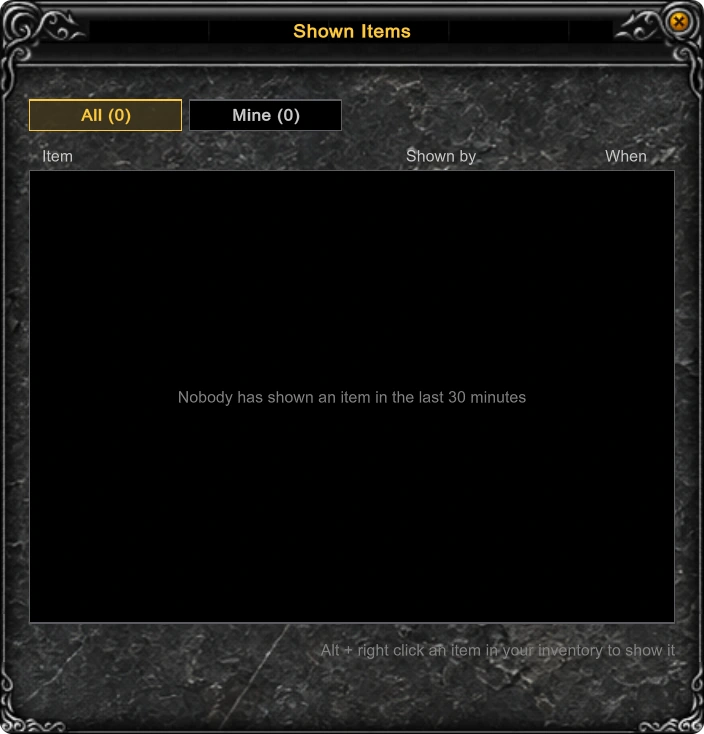
Hold Alt and right-click an item in your inventory, worn ones included: everyone sees a [SELL] line, and pointing at it opens the full description of the item. One item a minute.
So that an offer is not lost when the chat scrolls on, the main menu F1 keeps Shown Items - the last 30 items shown by anyone in the past half hour, with who showed them and when. The Mine tab leaves only your own.
Screenshot
F12 or Print Screen saves a picture into the ScreenShots folder of the game. Hold Shift as well for a picture without the chat line.
Updated: 08.10.2026
 Helper Alice