
Chat
Words travel far in this world - to the player beside you, to your party, to the guild, or to the whole server at once. Enter opens the chat line, Enter again sends it, Esc puts it away unsent.
The chat line
A row of tabs runs above the line. Normal, Party and Guild pick who hears you, Window opens the big chat window, Size changes the height of the log, Alpha makes the dark backing under the log lighter or deeper, and Settings opens the chat settings. The channel, the size, the backing and the frame stay as you left them after a restart.
Channels
The first character of the line picks the channel just as well:
| Start of the line | Who reads it |
|---|---|
| nothing | Players nearby |
| ~ | Your party |
| @ | Your guild |
| @@ | Your alliance |
| /post | The whole server - 100,000 Zen, from level 150 |
When the line is nearly full, a counter appears at its right edge: it turns orange at the limit and red past it. Cyrillic letters take twice the room of Latin ones, and a /post line is shorter than an ordinary one. Lines sent too fast, or the same line over and over, are quietly dropped.
Whisper
The small field to the left of the text takes a name of up to 10 letters: write the name there, the message on the right, and it goes to that player alone. Tab jumps between the two fields, and Up / Down in the name field go through the last six names you whispered to.
A right click on a name in the log puts it in the field for you; with the chat line open, so does a right click on a player in the world.
F3 is the whisper lock. Turn it off and the name field dims under a red tint and keeps the name, while your lines go to the normal chat. F3 again, and they go to that player once more.
The log
Every channel has its own colour and tag: [PARTY], [GUILD], [ALLIANCE], [WHISPER], [POST], [SELL]. The server team writes in bold gold with its rank after the name.
The mouse wheel over the log scrolls it back. With the chat line open, F5 gives the log a frame with a scroll bar - drag the handle, or drag the top edge of the frame to make it taller - and F4 steps its height: 3, 6, 9, 12, 15 lines. PageUp and PageDown scroll the framed log. Up and Down bring back the last 13 lines you sent.
F6 hides every chat message on the screen and brings them back; the golden notices in the middle of the screen stay, and you can still type.
Chat settings
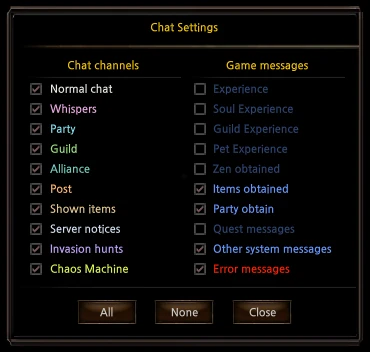
F2, the Settings tab or the Chat button in the options opens Chat Settings - 20 boxes in two columns:
| Chat channels | Game messages |
|---|---|
| Normal chat | Experience |
| Whispers | Master Experience |
| Party | Guild Experience |
| Guild | Pet Experience |
| Alliance | Zen obtained |
| Post | Items obtained |
| Shown items | Party obtain |
| Server notices | Quest messages |
| Invasion hunts | Other system messages |
| Chaos Machine | Error messages |
All and None tick or clear everything at once. The settings are shared by all your characters. Your own lines and the server team's always show. Turning a box back on returns the lines that came while it was off - except the experience readouts, which are not kept. With Normal chat off, the speech bubbles over heads go too.
Big chat window
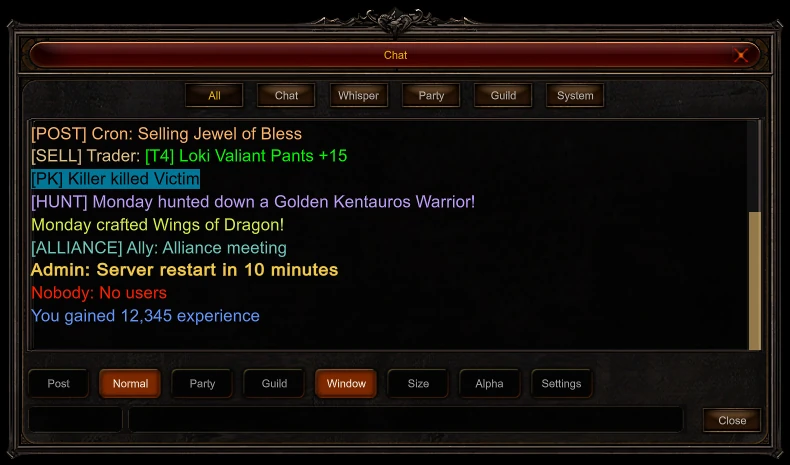
F7, the Window tab or the Chat button in the Esc menu opens the big Chat window in the middle of the screen: the last 200 lines, sorted by the tabs All, Chat, Whisper, Party, Guild and System. It scrolls with the wheel, PageUp / PageDown, Home / End and its scroll bar. It has its own line with a Write button that stays open after each message - made for a long talk. A right click on a name there starts a whisper.
Macros
Type "/1 your text" to save a line under the digit 1 - ten lines fit, from /1 to /0. Alt with the digit sends the saved line, and the Macro Time bar then runs for 4 seconds before the next one. Macros rest in Chaos Castle.
Showing an item
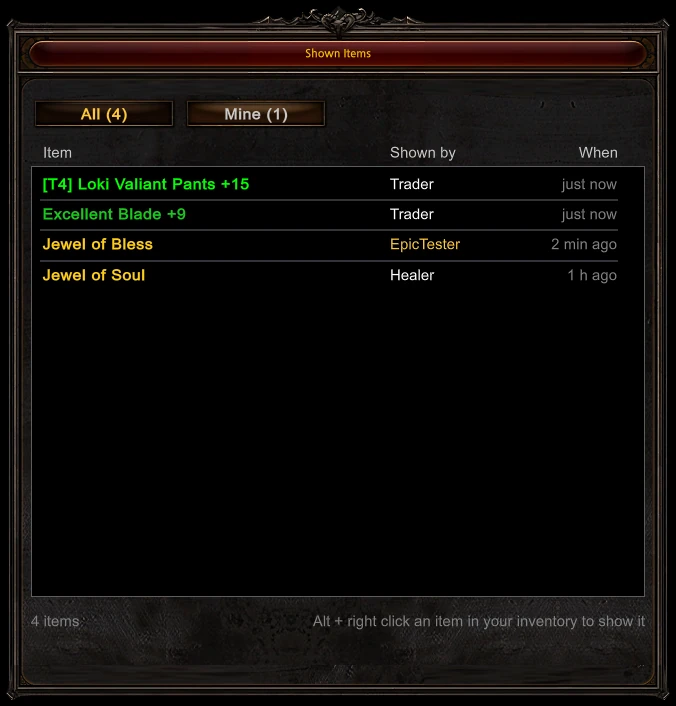
Hold Alt and right-click an item in your inventory, worn ones included: everyone sees a [SELL] line with the item's full name in its own colour, and pointing at it opens the whole description. One item a minute - the game tells you how many seconds are left.
So that an offer is not lost when the chat scrolls on, the main menu F1 keeps Shown Items - the last 30 items shown by anyone in the past half hour since you entered the game, with who showed them and when. The Mine tab leaves only your own.
Screenshot
F12 or Print Screen saves a picture into the ScreenShots folder of the game. Hold Shift as well, and the "Screenshot Saved" line stays out of the picture.
Updated: 08.10.2026

 Helper Alice